The GradientBevelFilter class lets you apply a gradient bevel effect to
display objects. A gradient bevel is a beveled edge, enhanced with gradient
color, on the outside, inside, or top of an object. Beveled edges make objects
look three-dimensional. You can apply the filter to any display object
(that is, objects that inherit from the DisplayObject class), such as MovieClip,
SimpleButton, TextField, and Video objects, as well as to BitmapData objects.
The use of filters depends on the object to which you apply the filter:
-
To apply filters to display objects, use the filters property. Setting the filters property of an object does not modify the object, and you can remove the filter by clearing the filters property.
-
To apply filters to
BitmapDataobjects, use theBitmapData.applyFilter()method. CallingapplyFilter()on a BitmapData object takes the sourceBitmapDataobject and the filter object and generates a filtered image as a result.
If you apply a filter to a display object, the cacheAsBitmap property
of the display object is set to true. If you clear all filters, the original
value of cacheAsBitmap is restored.
This filter supports Stage scaling. However, it does not support general
scaling, rotation, and skewing. If the object itself is scaled(if
scaleX and scaleY are set to a value other than
1.0), the filter is not scaled. It is scaled only when the user zooms in on
the Stage.
A filter is not applied if the resulting image exceeds the maximum dimensions. In AIR 1.5 and Flash Player 10, the maximum is 8,191 pixels in width or height, and the total number of pixels cannot exceed 16,777,215 pixels.(So, if an image is 8,191 pixels wide, it can only be 2,048 pixels high.) In Flash Player 9 and earlier and AIR 1.1 and earlier, the limitation is 2,880 pixels in height and 2,880 pixels in width. For example, if you zoom in on a large movie clip with a filter applied, the filter is turned off if the resulting image exceeds the maximum dimensions.
Constructor
new(distance:Float = 4, angle:Float = 45, ?colors:Array<Int>, ?alphas:Array<Float>, ?ratios:Array<Int>, blurX:Float = 4, blurY:Float = 4, strength:Float = 1, quality:Int = 1, type:String = "inner", knockout:Bool = false)
Initializes the filter with the specified parameters.
Parameters:
distance | The offset distance of the glow. |
|---|---|
angle | The angle, in degrees. Valid values are |
colors | An array of RGB hexadecimal color values to use in the gradient. For example, red is |
alphas | An array of alpha transparency values for the corresponding colors in the colors array. Valid values for each
element in the array are |
ratios | An array of color distribution ratios. Valid values are |
blurX | The amount of horizontal blur. Valid values are |
blurY | The amount of vertical blur. Valid values are |
strength | The strength of the imprint or spread. The higher the value, the more color is imprinted and the stronger the
contrast between the glow and the background. Valid values are |
quality | The number of times to apply the filter. Use the For more information, see the description of the quality property. |
type | The placement of the filter effect. Possible values are the |
knockout | Specifies whether the object has a knockout effect. A knockout effect makes the object's fill transparent and reveals
the background color of the document. The value |
Variables
alphas:Array<Float>
An array of alpha transparency values for the corresponding colors in the colors array.
Valid values for each element in the array are 0 to 1. For example, .25 sets the alpha
transparency value to 25%.
The alphas property cannot be changed by directly modifying its values. Instead, you must get a reference to alphas, make the change to the reference, and then set alphas to the reference.
The colors, alphas, and ratios properties are related. The first element in the colors
array corresponds to the first element in the alphas array and in the ratios array,
and so on.
angle:Float
The angle, in degrees. Valid values are 0 to 360. The default is 45.
The angle value represents the angle of the theoretical light source falling on the
object and determines the placement of the effect relative to the object. If distance is
set to 0, the effect is not offset from the object, and therefore the angle property
has no effect.
blurX:Float
The amount of horizontal blur. Valid values are 0 to 255. A blur of 1 or less means
that the original image is copied as is. The default value is 4. Values that are a power of 2
(such as 2, 4, 8, 16, and 32) are optimized to render more quickly than other values.
blurY:Float
The amount of vertical blur. Valid values are 0 to 255. A blur of 1 or less means
that the original image is copied as is. The default value is 4. Values that are a power of 2
(such as 2, 4, 8, 16, and 32) are optimized to render more quickly than other values.
colors:Array<Int>
An array of RGB hexadecimal color values to use in the gradient. For example, red is 0xFF0000,
blue is 0x0000FF, and so on.
The colors property cannot be changed by directly modifying its values. Instead, you must
get a reference to colors, make the change to the reference, and then set colors to the
reference.
The colors, alphas, and ratios properties are related. The first element in the colors
array corresponds to the first element in the alphas array and in the ratios array,
and so on.
quality:Int
The number of times to apply the filter. The default value is BitmapFilterQuality.LOW, which is
equivalent to applying the filter once. The value BitmapFilterQuality.MEDIUM applies the filter
twice; the value BitmapFilterQuality.HIGH applies it three times. Filters with lower values are
rendered more quickly.
For most applications, a quality value of low, medium, or high is sufficient. Although you can
use additional numeric values up to 15 to achieve different effects, higher values are rendered
more slowly. Instead of increasing the value of quality, you can often get a similar effect,
and with faster rendering, by simply increasing the values of the blurX and blurY properties.
ratios:Array<Int>
An array of color distribution ratios for the corresponding colors in the colors array. Valid
values are 0 to 255.
The ratios property cannot be changed by directly modifying its values. Instead, you must get a reference to ratios, make the change to the reference, and then set ratios to the reference.
The colors, alphas, and ratios properties are related. The first element in the colors
array corresponds to the first element in the alphas array and in the ratios array,
and so on.
Think of the gradient glow filter as a glow that emanates from the center of the object
(if the distance value is set to 0), with gradients that are stripes of color blending into each
other. The first color in the colors array is the outermost color of the glow. The last color is
the innermost color of the glow.
Each value in the ratios array sets the position of the color on the radius of the gradient, where
0 represents the outermost point of the gradient and 255 represents the innermost point of the
gradient. The ratio values can range from 0 to 255 pixels, in increasing value; for example
[0, 64, 128, 200, 255]. Values from 0 to 128 appear on the outer edges of the glow. Values
from 129 to 255 appear in the inner area of the glow. Depending on the ratio values of the
colors and the type value of the filter, the filter colors might be obscured by the object to which
the filter is applied.
In the following code and image, a filter is applied to a black circle movie clip, with the type set
to "full". For instructional purposes, the first color in the colors array, pink, has an alpha
value of 1, so it shows against the white document background.
(In practice, you probably would not want the first color showing in this way.) The last color in the
array, yellow, obscures the black circle to which the filter is applied:
var colors:Array = [0xFFCCFF, 0x0000FF, 0x9900FF, 0xFF0000, 0xFFFF00];
var alphas:Array = [1, 1, 1, 1, 1];
var ratios:Array = [0, 32, 64, 128, 225];
var myGGF:GradientGlowFilter = new GradientGlowFilter(0, 0, colors, alphas, ratios, 50, 50, 1, 2, "full", false);
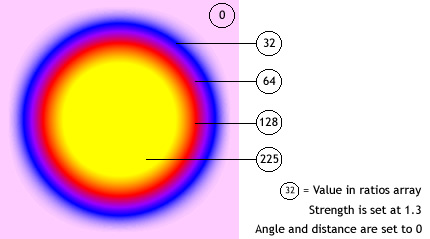
To achieve a seamless effect with your document background when you set the type value to "outer"
or "full", set the first color in the array to the same color as the document background, or set the
alpha value of the first color to 0; either technique makes the filter blend in with the background.
If you make two small changes in the code, the effect of the glow can be very different, even with the
same ratios and colors arrays. Set the alpha value of the first color in the array to 0, to make the
filter blend in with the document's white background; and set the type property to "outer" or "inner".
Observe the results, as shown in the following images.
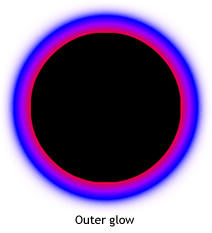
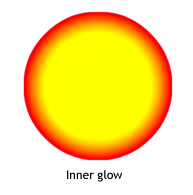
Keep in mind that the spread of the colors in the gradient varies based on the values of the blurX, blurY,
strength, and quality properties, as well as the ratios values.
strength:Float
The strength of the imprint or spread. The higher the value, the more color is imprinted and the stronger
the contrast between the glow and the background. Valid values are 0 to 255. A value of 0 means that the
filter is not applied. The default value is 1.
type:String
The placement of the filter effect. Possible values are openfl.filters.BitmapFilterType constants:
BitmapFilterType.OUTER— Glow on the outer edge of the objectBitmapFilterType.INNER— Glow on the inner edge of the object; the default.BitmapFilterType.FULL— Glow on top of the object
Methods
clone():BitmapFilter
Returns a copy of this filter object.
Returns:
BitmapFilter — A new GradientBevelFilter instance with all the same properties as the original GradientBevelFilter instance.